Monday, October 26
10:08
iPhone and iPad. Connect a cable, unlock and tap Trust. There's nothing to install on the phone.
 NeatShot 1.2.3 is here — see what's new
The free capture app for Mac that handles the whole job: capture, annotate, record and share. It lives in your menu bar, and your captures stay on your Mac unless you share them.
macOS 14 Sonoma or later · Apple silicon & Intel
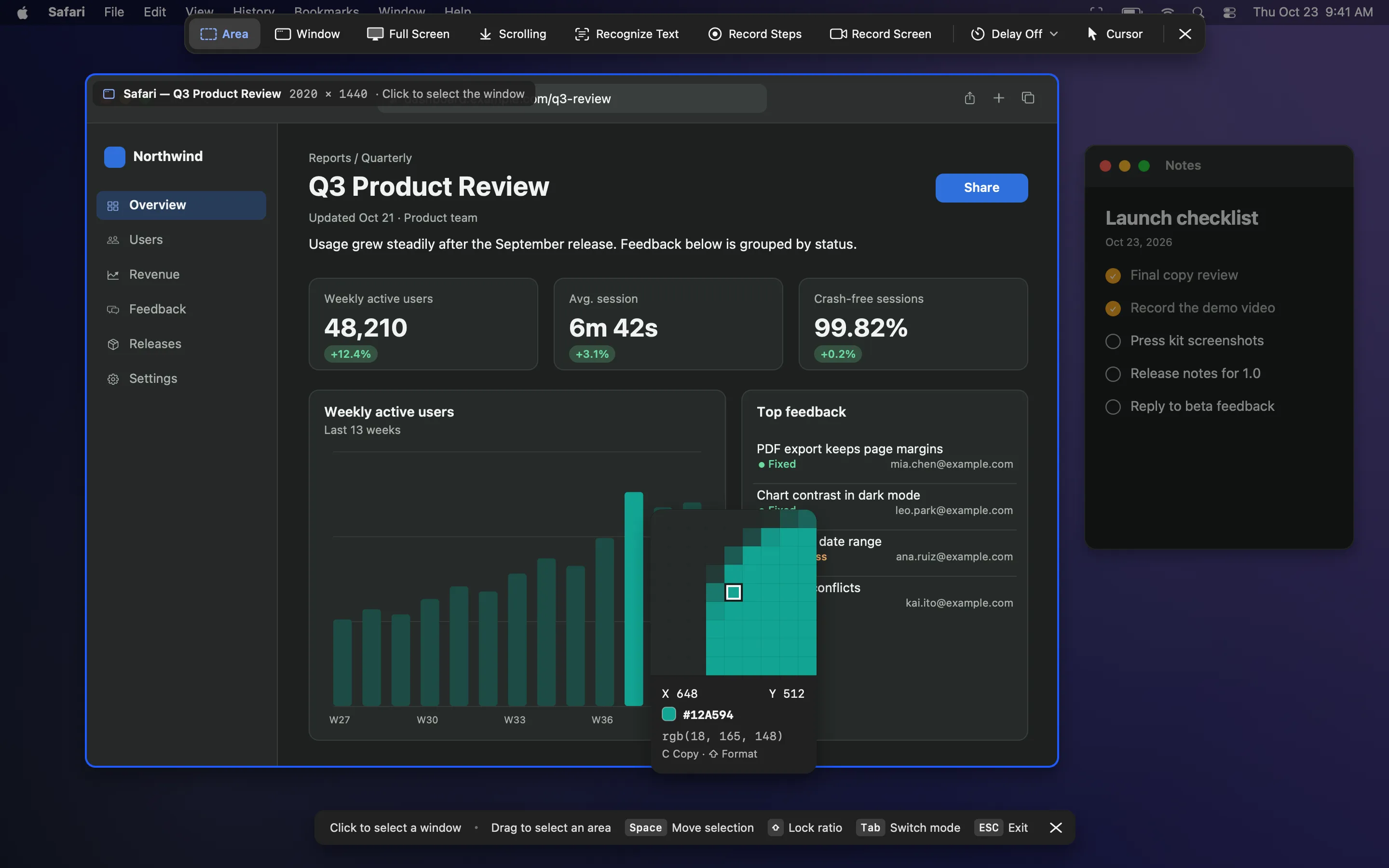
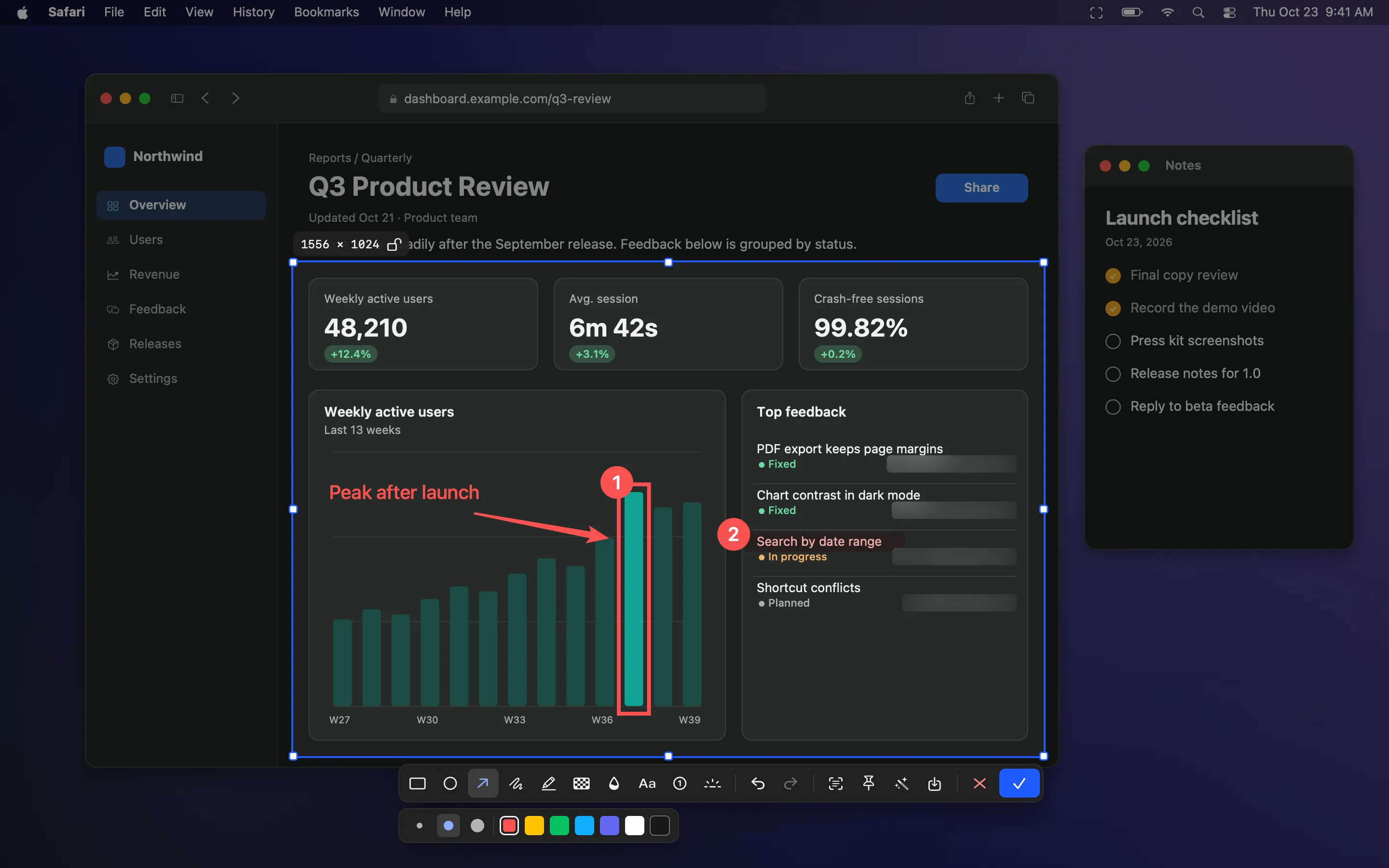
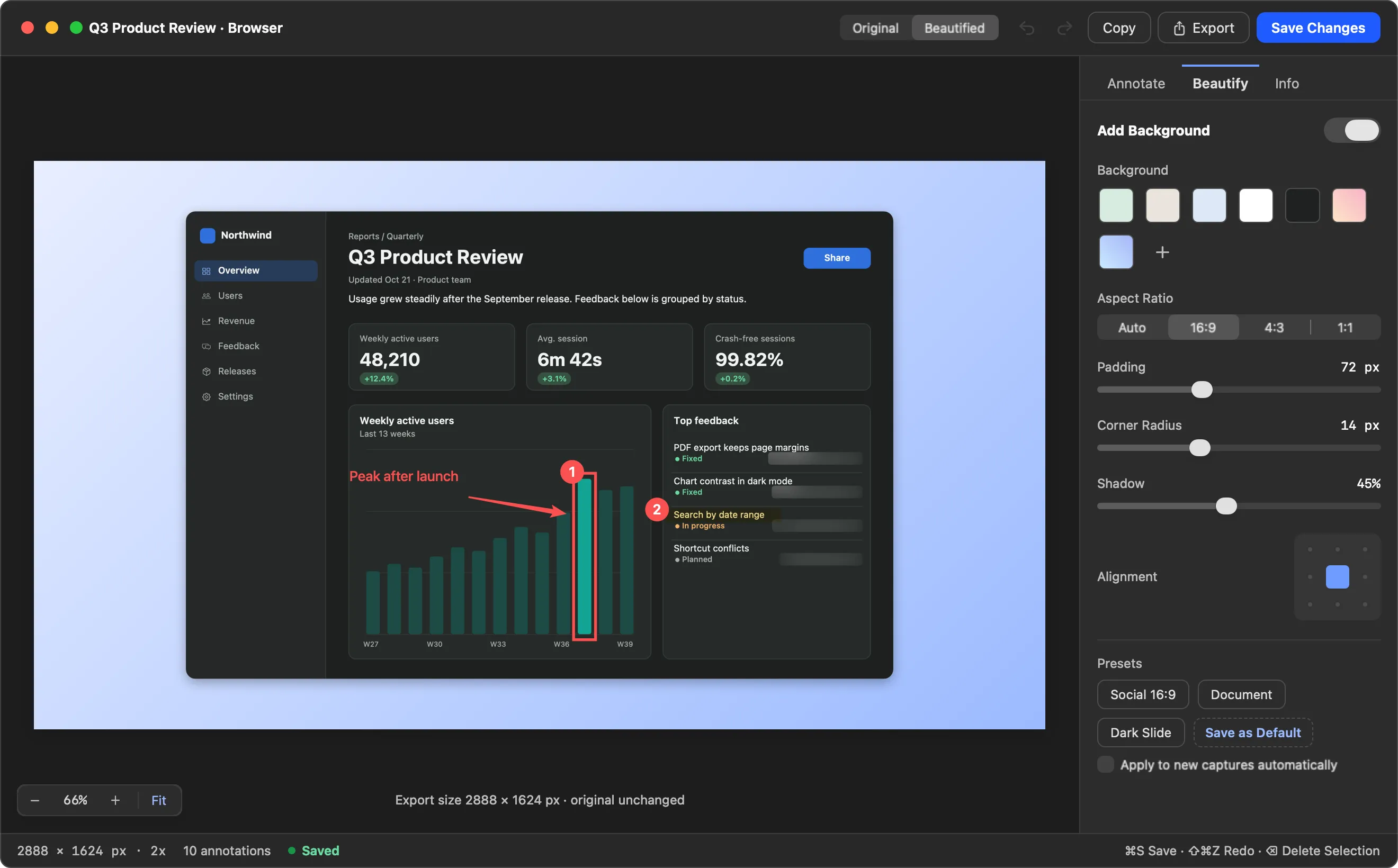
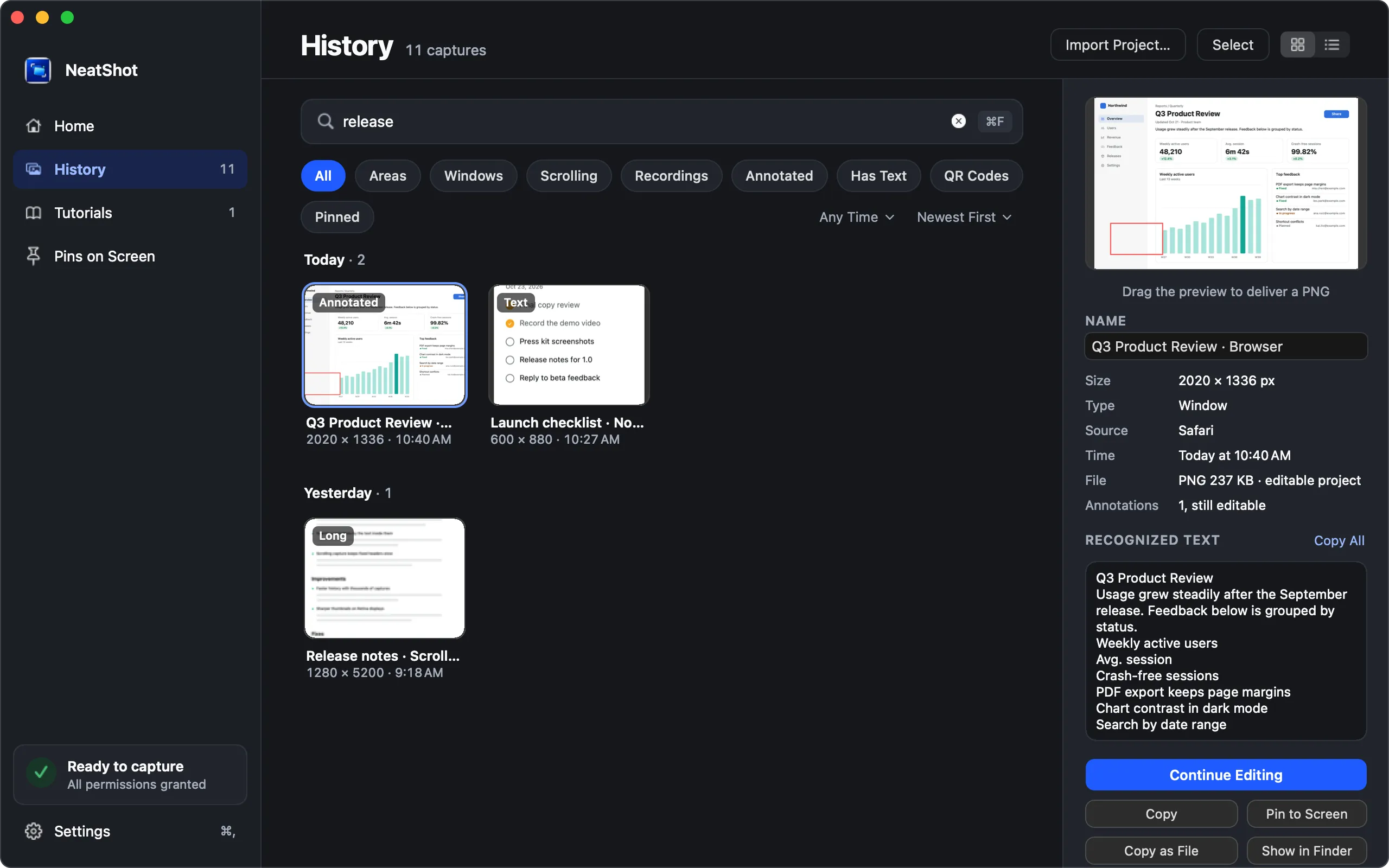
Eleven annotation tools that stay editable, a beautify editor with wallpapers, presets and Auto Balance, and a history you can search by the words inside each image.
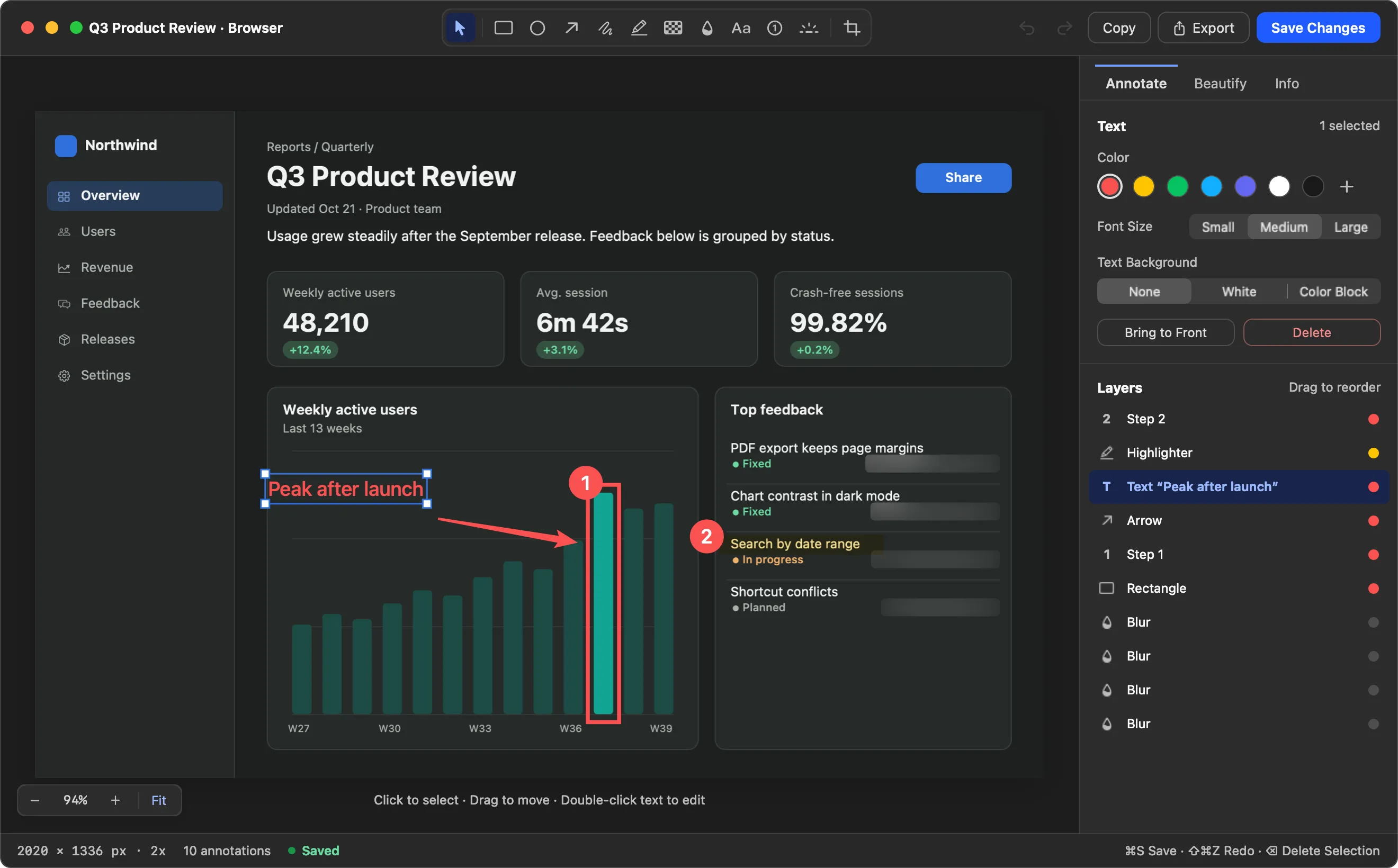
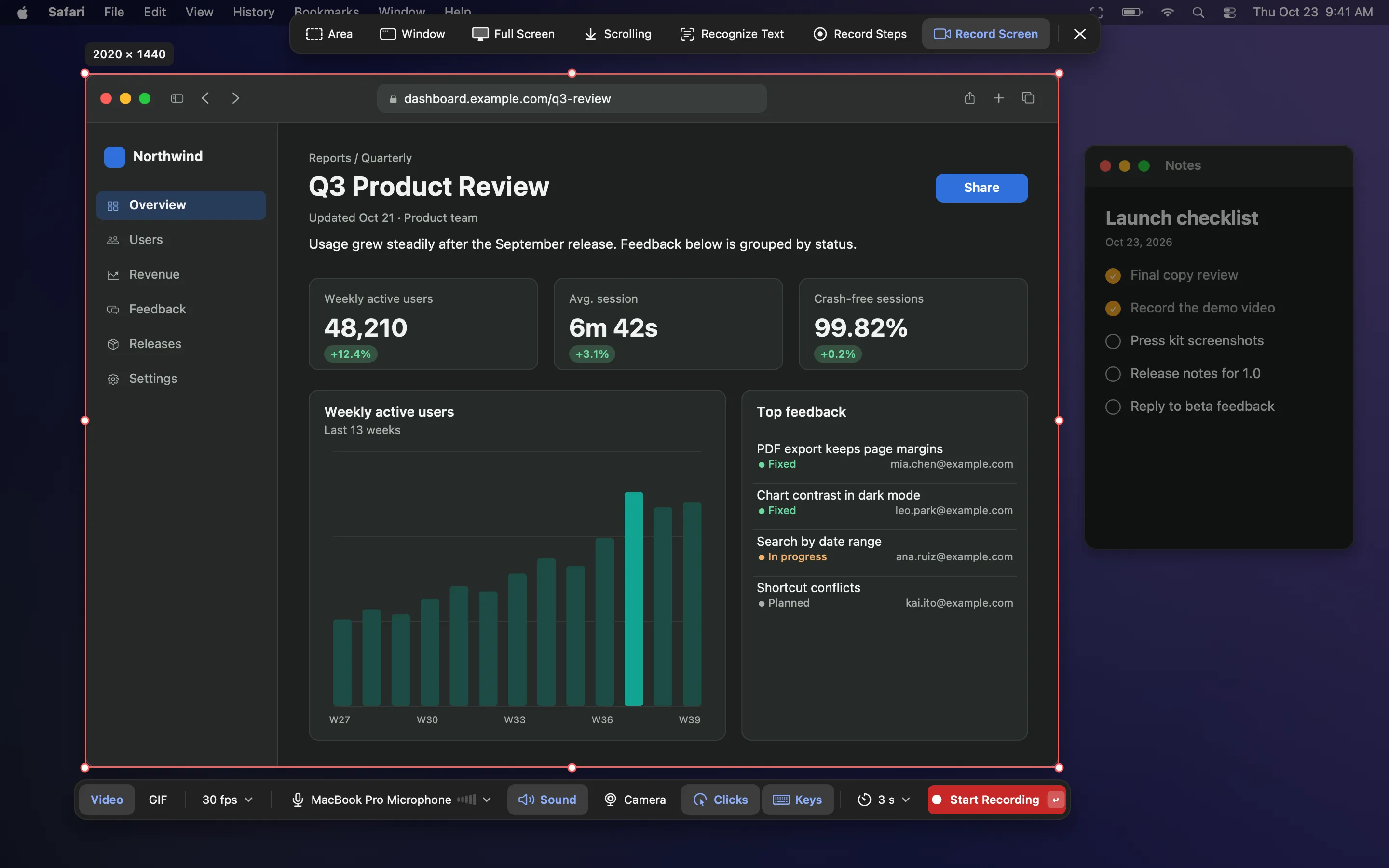
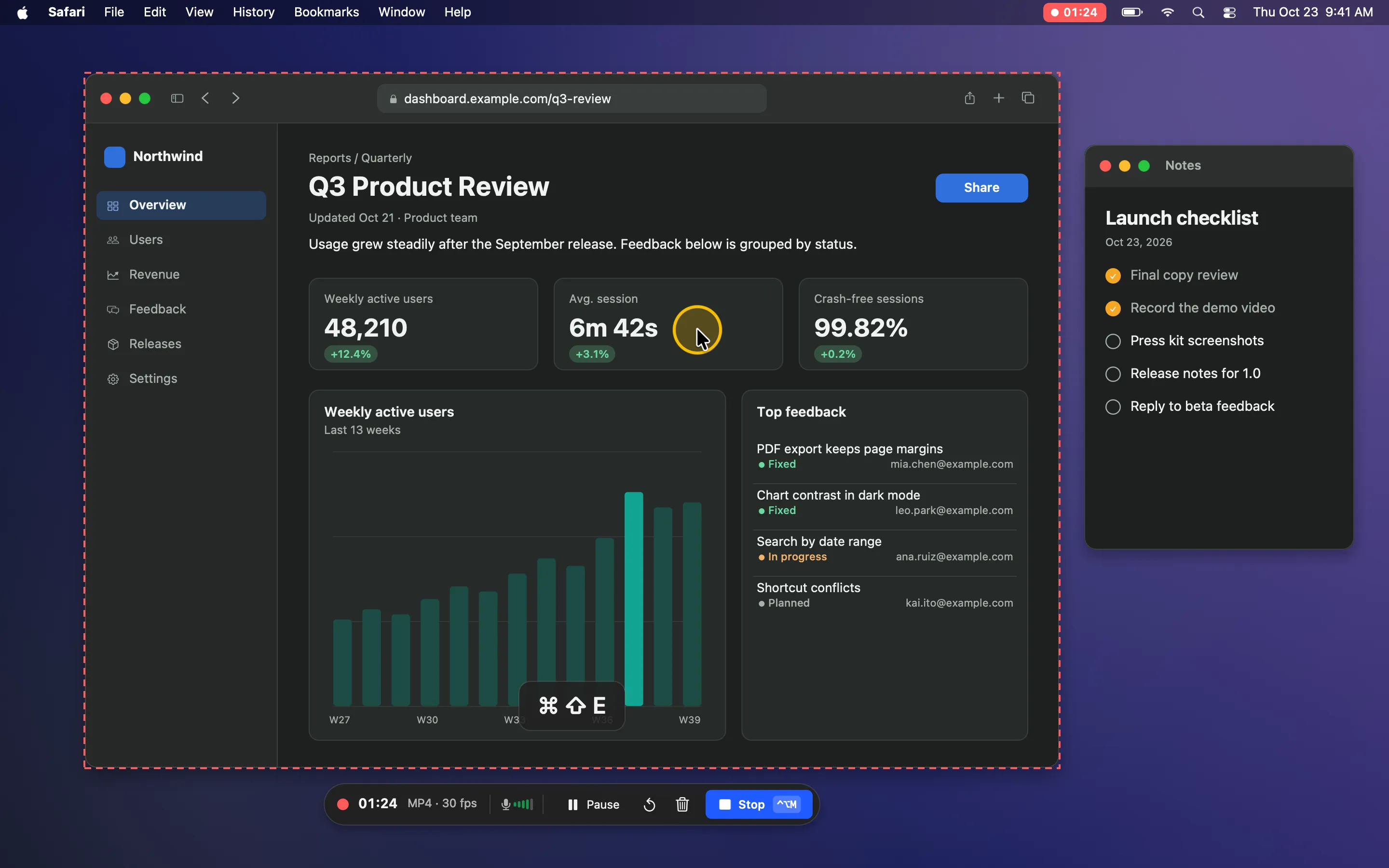
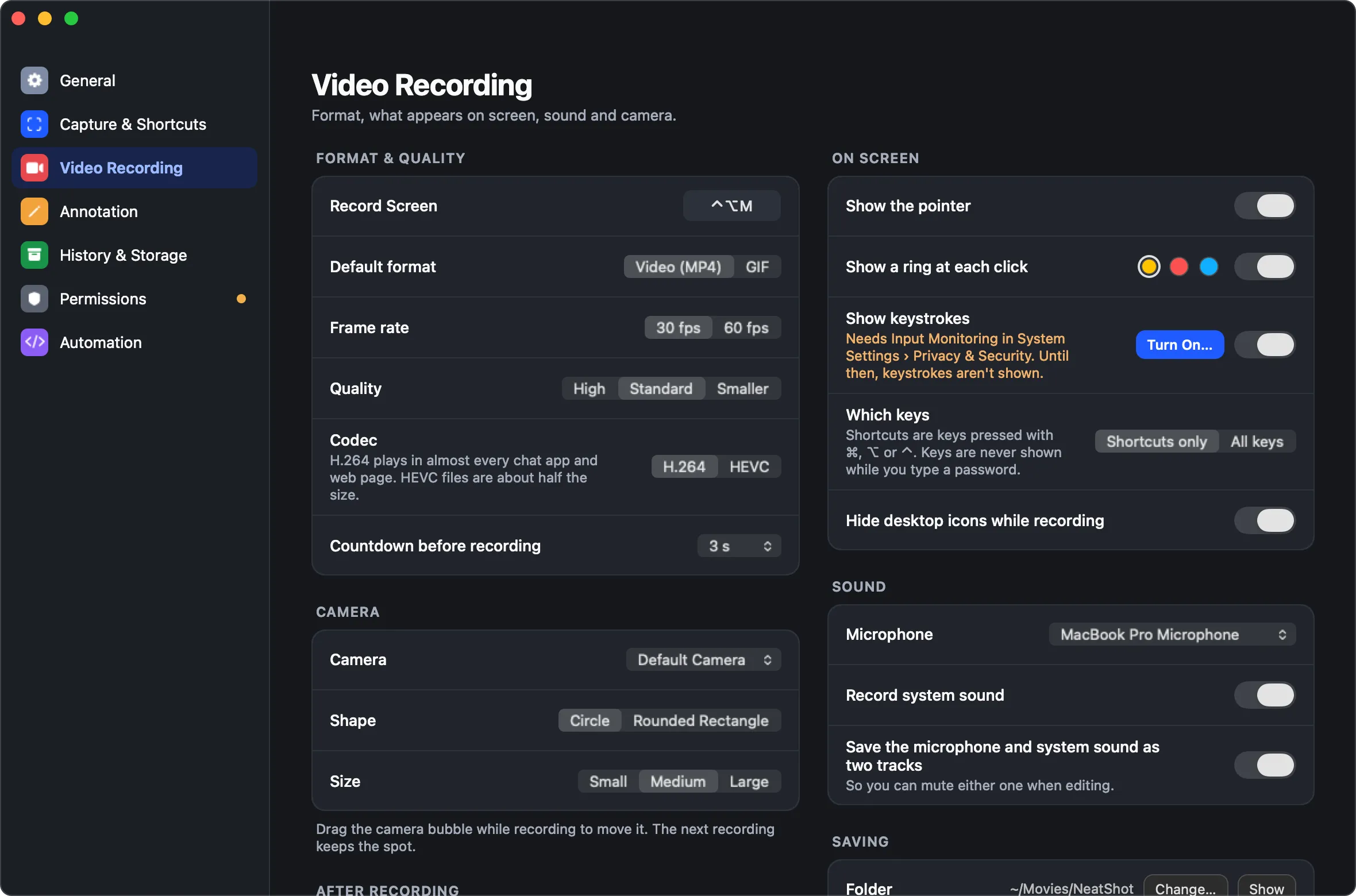
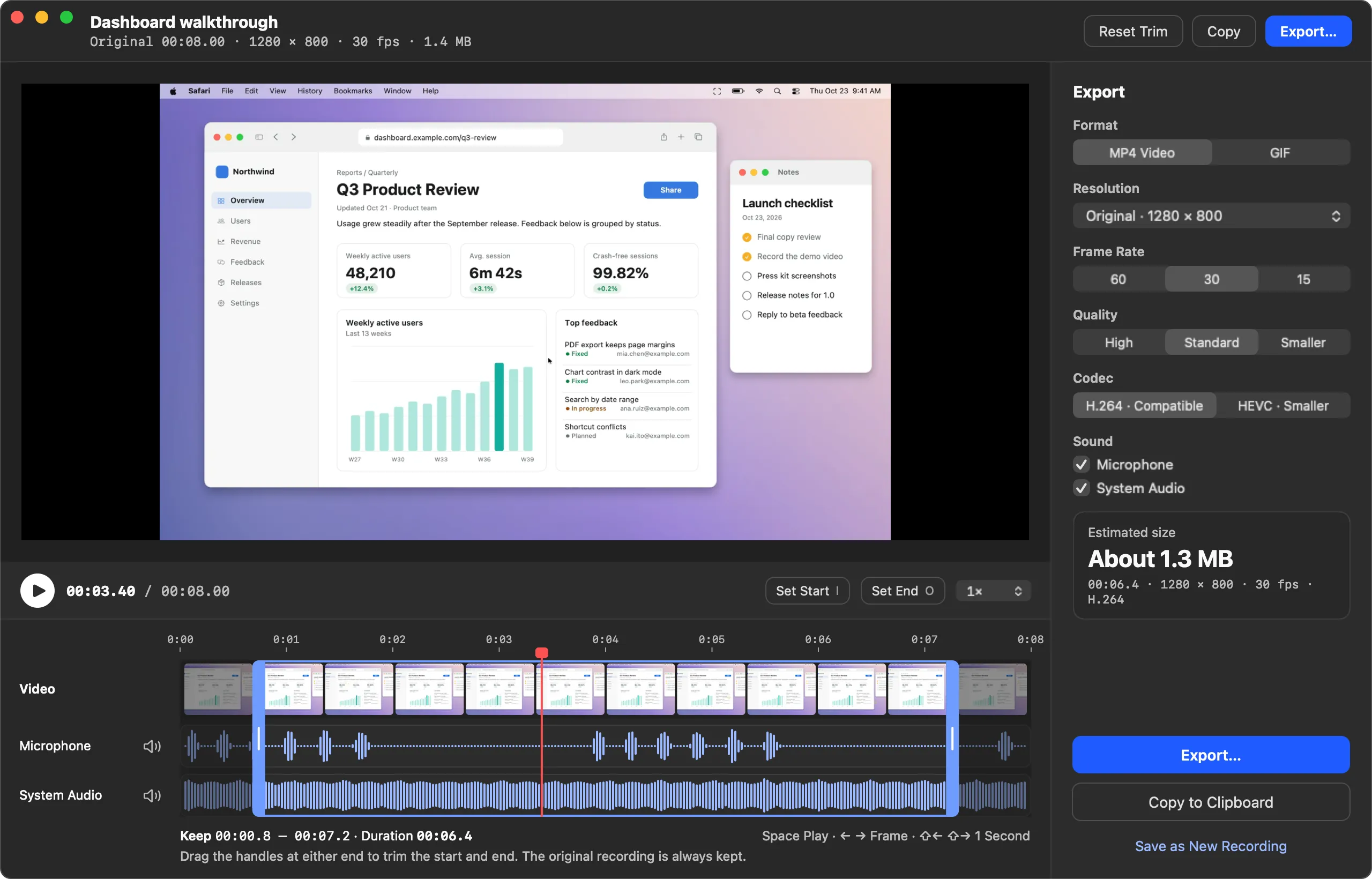
Press ⌃⌥M, pick an area, a window or the whole screen, and record MP4 or GIF with your voice, system sound, camera, clicks and keystrokes. Then zoom in on your clicks, cut, speed up and export in the editor.
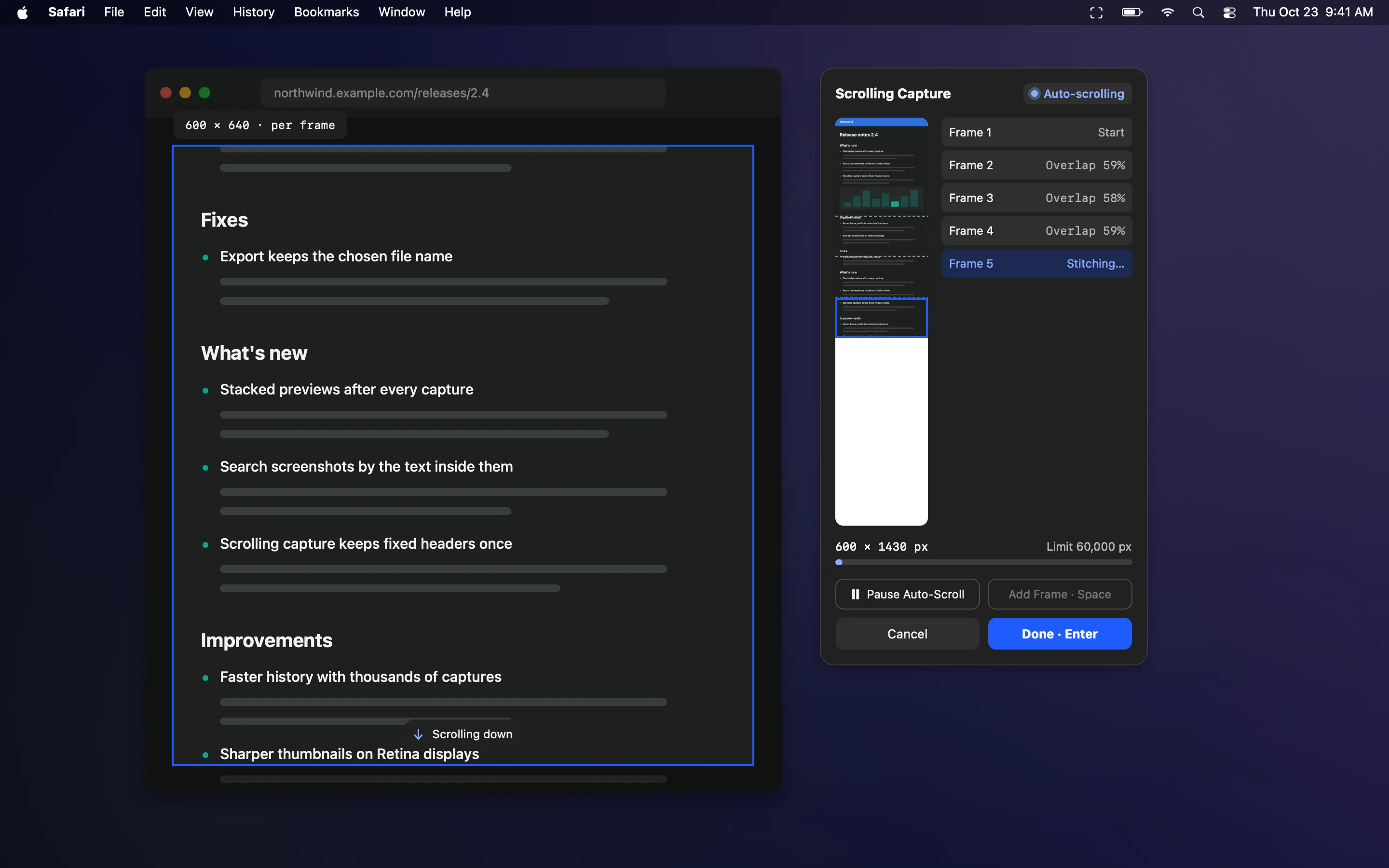
Select what scrolls, then scroll yourself or let NeatShot do it. Sticky headers appear once, up to 60,000 px tall.
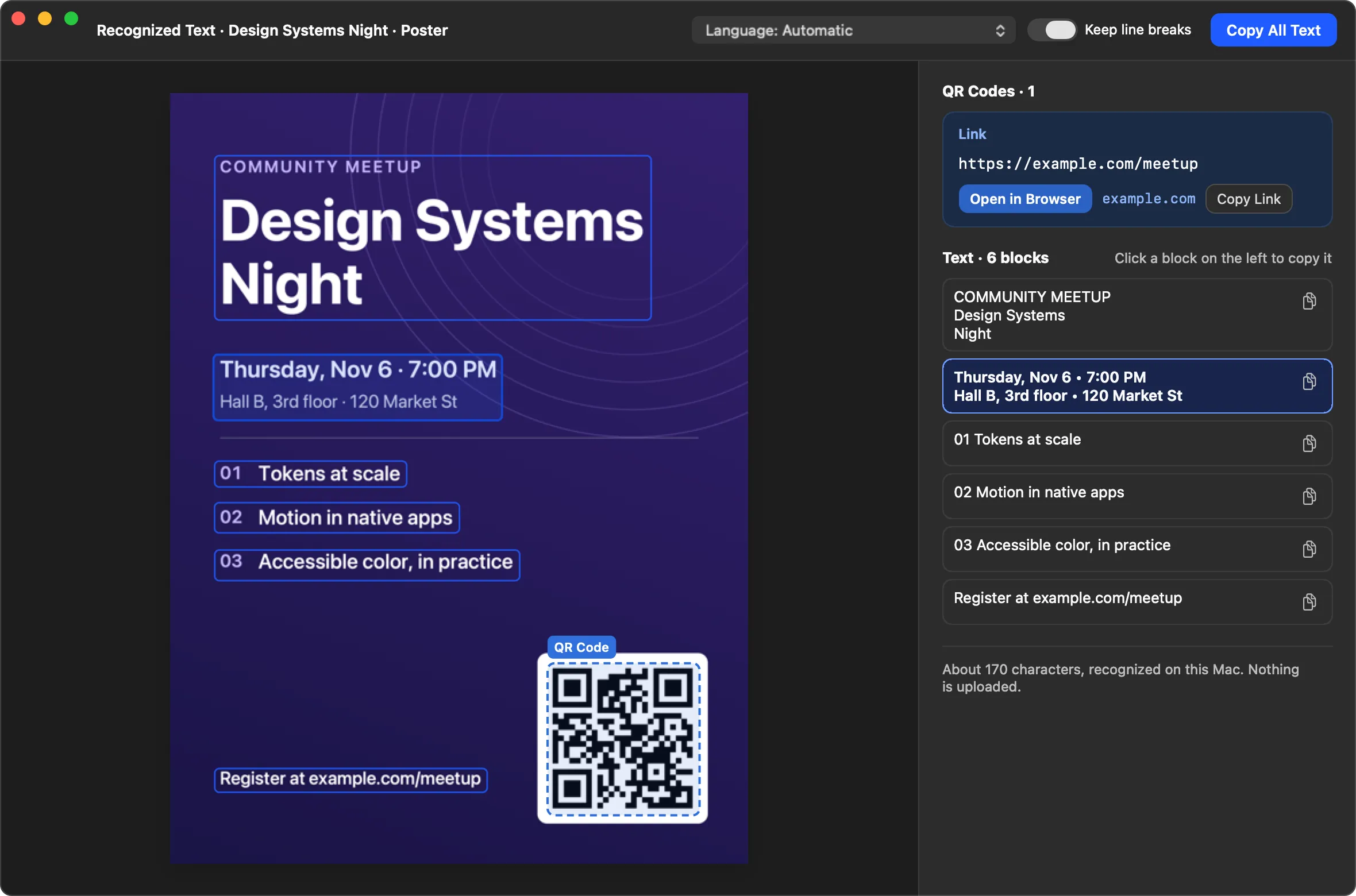
Press ⌃⌥T and select. Text and QR codes are recognized on your Mac with Apple's Vision framework.
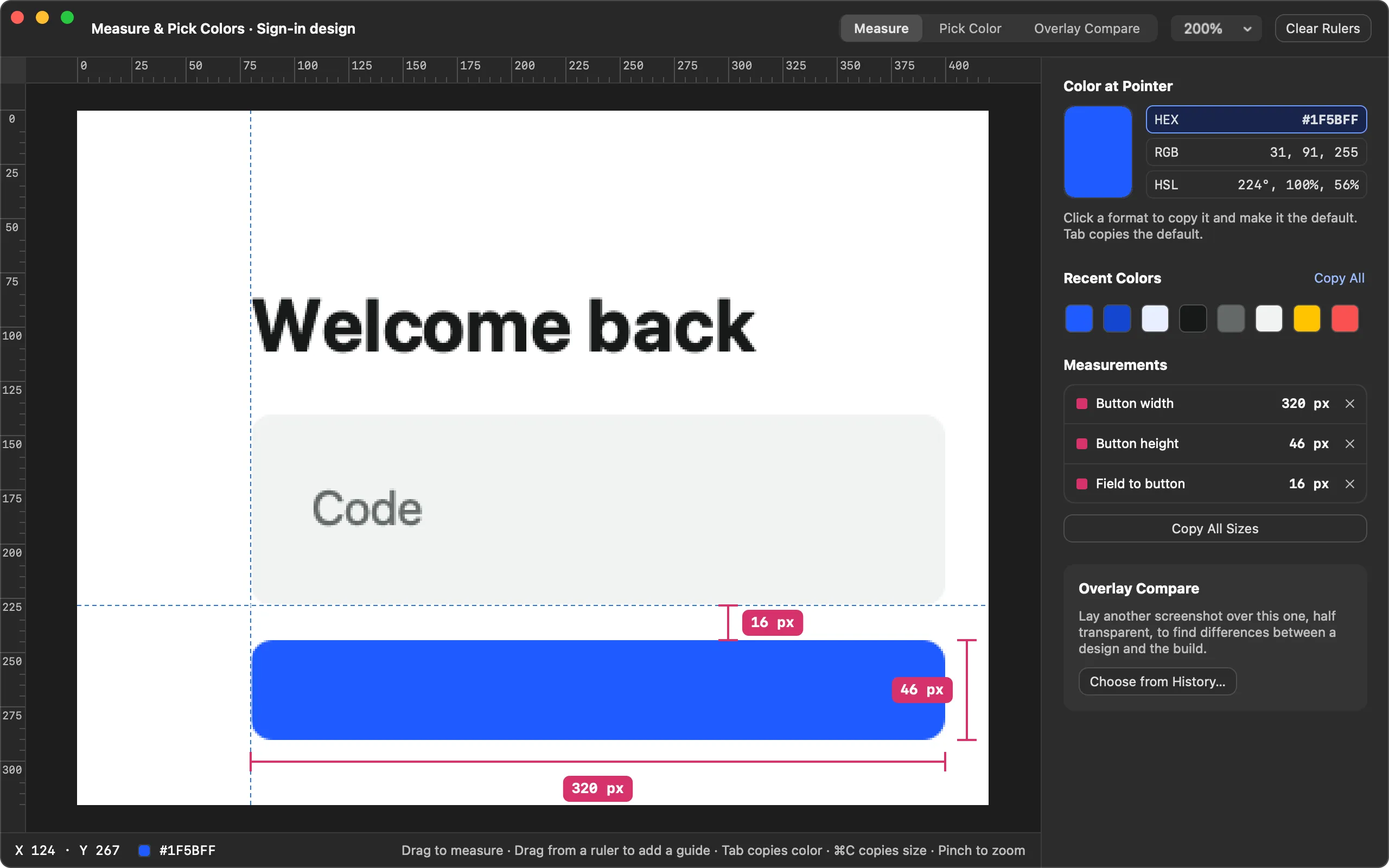
Float any capture above your windows while you work, then measure, pick colors and compare designs in physical pixels.
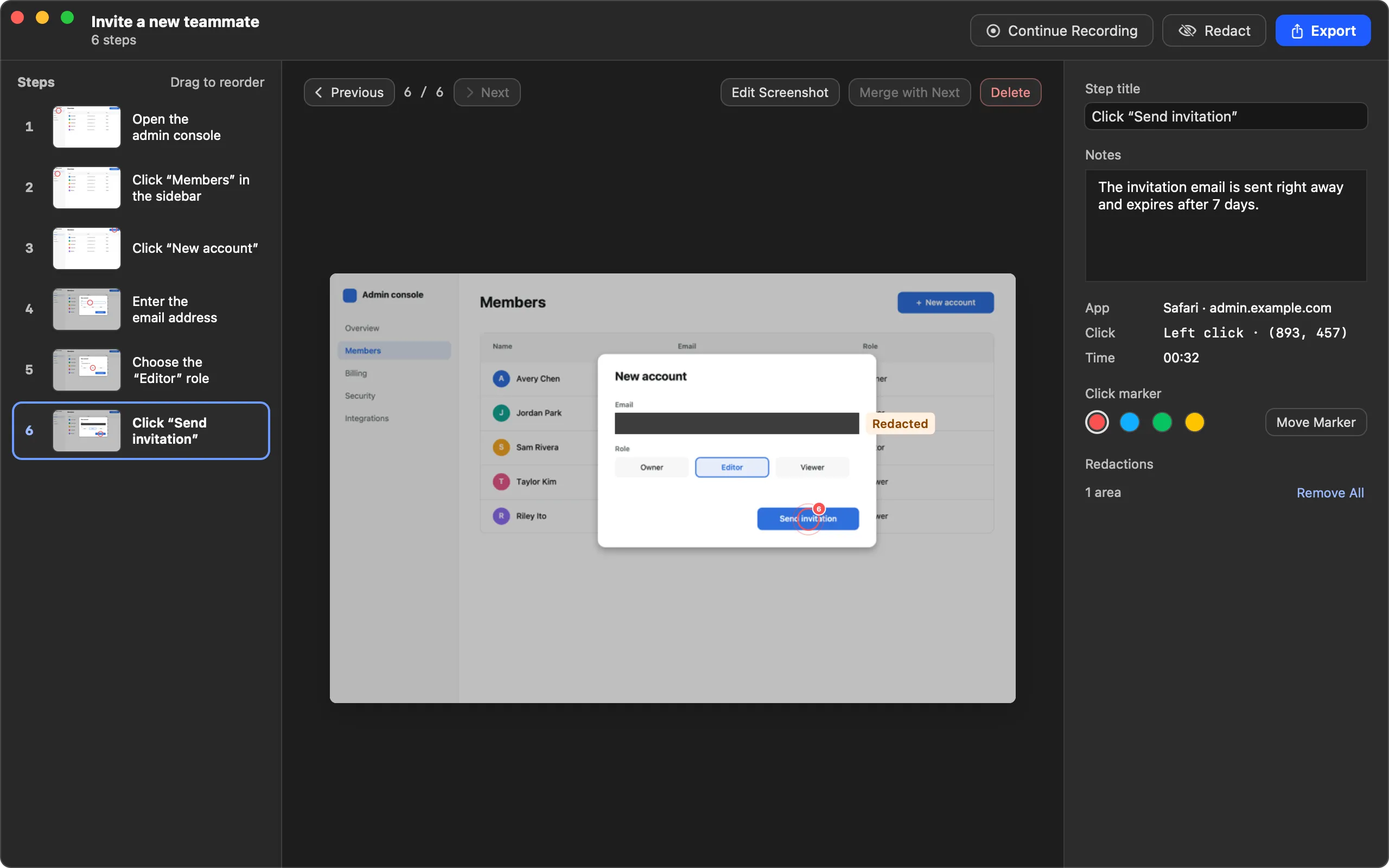
Press ⌃⌥R and click through a task. Every click becomes a numbered step with a screenshot, ready to export as HTML, Markdown or PDF.
Plug in an iPhone or iPad with a cable, or an Android phone with USB debugging. Its screen appears in a window on your Mac, ready to screenshot or record.
iPhone and iPad. Connect a cable, unlock and tap Trust. There's nothing to install on the phone.
Android. Turn on USB debugging and install Google's adb, and the phone shows up the same way.
NeatShot includes an MCP server for AI assistants such as Claude Desktop, Claude Code and Cursor, and a neatshot command line tool for your scripts. Both stay off until you turn them on.
How are weekly active users doing in the Q3 review I have open in Safari?
capture_screenshot app: "Safari"
recognize_text 6 text blocks
Weekly active users are at 48,210, up 12.4%. Crash-free sessions are at 99.82%.
$ neatshot capture window --app Safari -o review.png/Users/you/review.png$ neatshot ocr review.pngQ3 Product Review Weekly active users 48,210 +12.4%$ neatshot capture phone --frame -o phone.png/Users/you/phone.png$ neatshot record start window --app Keynote --mic --clicksRecording. Stop it with: neatshot record stop
The small things that make every capture a little faster.
Choose Smaller, Balanced, Best Quality or Lossless. History keeps the originals.
Grouped by day, filtered by type, searchable by name, text and QR codes.
Drag a capture from the quick overlay or the menu straight into Finder, a chat or a document.
Wait 3, 5 or 10 seconds to catch menus and hover states.
Press ⌃⌥C anywhere on screen and copy HEX or RGB.
Press ⌃⌥V to float any copied image above your windows.
PNG, JPEG or HEIC, with file names built from the date, time, app and window title.
Trigger captures from Shortcuts, Raycast or scripts with neatshot:// links.
Your three latest captures sit at the top of the menu, ready to open or drag.
Layers, crop, rotate and undo, saved as .enshot projects you can reopen any time.
Recordings show only shortcuts by default, and never what you type into a password field.
English, Simplified Chinese, Traditional Chinese and Japanese.
Captures, recordings and recognized text stay on your Mac unless you share them. Usage statistics and crash reports are optional and off by default.
This website uses Google Analytics. Optional app diagnostics are controlled separately in Settings. Read the privacy policy
A native Swift app built on AppKit, ScreenCaptureKit and Vision. Every shortcut can be re-recorded in Settings, and NeatShot tells you when another app already uses one.
Fair, sourced side-by-sides with the Mac tools you may already know.
CleanShot X is a polished, paid capture suite with an optional cloud service. NeatShot covers much of the same ground for free, keeps captures local until you share a link, and adds step-by-step guides and a pixel inspector.
Learn more →Screen Studio is a polished, paid screen recorder with automatic zooms, a smooth pointer, captions, camera layouts and share links. NeatShot's free editor also zooms on your clicks, smooths the pointer, adds motion blur and masks, and lets you move the camera after recording. It keeps recordings on your Mac unless you share a link, and takes screenshots too.
Learn more →Shottr is a tiny, fast screenshot tool loved for its measuring and OCR. NeatShot shares that focus on speed and pixels, and adds screen recording, step-by-step guides and a searchable history.
Learn more →Snipaste made pinning screenshots on screen famous, and it runs on Windows, macOS and Linux. NeatShot brings pins to a Mac-only app that also does scrolling capture, OCR, recording and guides.
Learn more →Apple's Screenshot app (⌘⇧5) is free, built in and good for quick captures and recordings. NeatShot adds the tools people usually install a second app for.
Learn more →Yes. NeatShot is free to download and use, with no trial period, no subscription, no watermark and no account.
Any Mac with macOS 14 Sonoma or later. The app is a Universal binary that runs natively on Apple silicon and Intel Macs. Captures, recordings and recognized text stay on your Mac unless you share them. Usage statistics and crash reports are optional and off by default.
Only when you choose Copy Link. That uploads the one file to NeatShot Cloud and copies a link that expires after 1 day; you can delete it sooner in Settings › Sharing. Otherwise captures, recordings and recognized text stay on your Mac. The app also goes online to check for and download updates and, once you allow the microphone for spoken labels, to stream what you say to Soniox, which turns it into text. Only your voice is sent, never the screenshot.
Yes. NeatShot records MP4 video (H.264 or HEVC) with microphone and system audio on separate tracks, or GIF clips up to 30 seconds.
Yes. Select the scrolling area and NeatShot stitches frames as you scroll — or scrolls for you — up to 60,000 px tall, keeping fixed headers and footers once.
Yes. Text and QR codes are recognized on-device with Apple's Vision framework. Click a text block to copy it, and search your history by the text inside screenshots.
Screen Recording to capture the screen. Optional: Accessibility for automatic scrolling and step names, Microphone for recordings and spoken labels, Camera for recordings and a connected iPhone or iPad, and Input Monitoring to show keystrokes. The first-run guide explains each one.
English, Simplified Chinese, Traditional Chinese and Japanese. It follows your system language, and you can switch in Settings › General.
Yes. Connect an iPhone or iPad with a USB cable, or an Android phone with USB debugging turned on and Google's adb installed. NeatShot shows its screen live in a window, where you can take screenshots, with or without a device frame, and record it. iPhone and iPad recordings include the phone's sound.
Yes. NeatShot includes an MCP server, so assistants such as Claude Desktop, Claude Code and Cursor can take screenshots, read text and QR codes and, if you allow it, record the screen. The neatshot command line tool does the same from scripts. Both are off until you turn them on in Settings › Automation.
Free, signed and notarized for macOS 14 Sonoma and later.
macOS 14 Sonoma or later · Apple silicon & Intel