 NeatShot
Capture and annotate in one motion
Press ⌥Z, drag a selection and the toolbar appears right under it. Mark up, then press Return to copy — no separate editor window needed.
macOS 14 Sonoma or later · Apple silicon & Intel
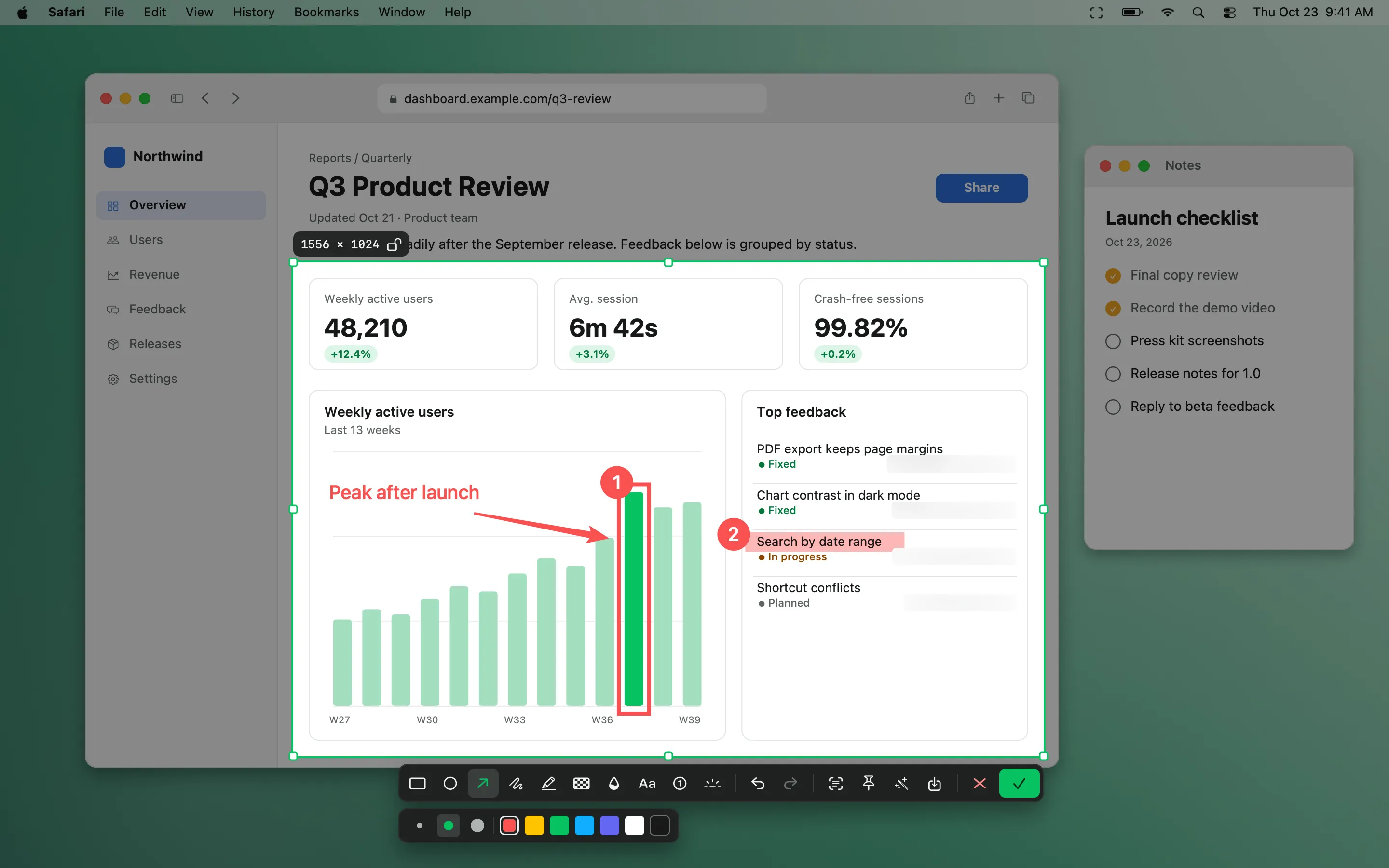
Smart selection
Hover to snap to any window and see its app name and size. Eight handles, arrow-key nudging and ⇧ to lock the ratio.
Magnifier
A 9×9 pixel loupe shows coordinates and HEX/RGB. Press C to copy the color.
10 tools
Rectangle R, ellipse E, arrow A, pen P, highlighter H, mosaic M, blur B, text T, step numbers S and spotlight F.
Editable marks
Select, move, recolor or delete any annotation, with full undo and redo.
Window captures
Window mode keeps the rounded corners and the transparent shadow.
Beautify
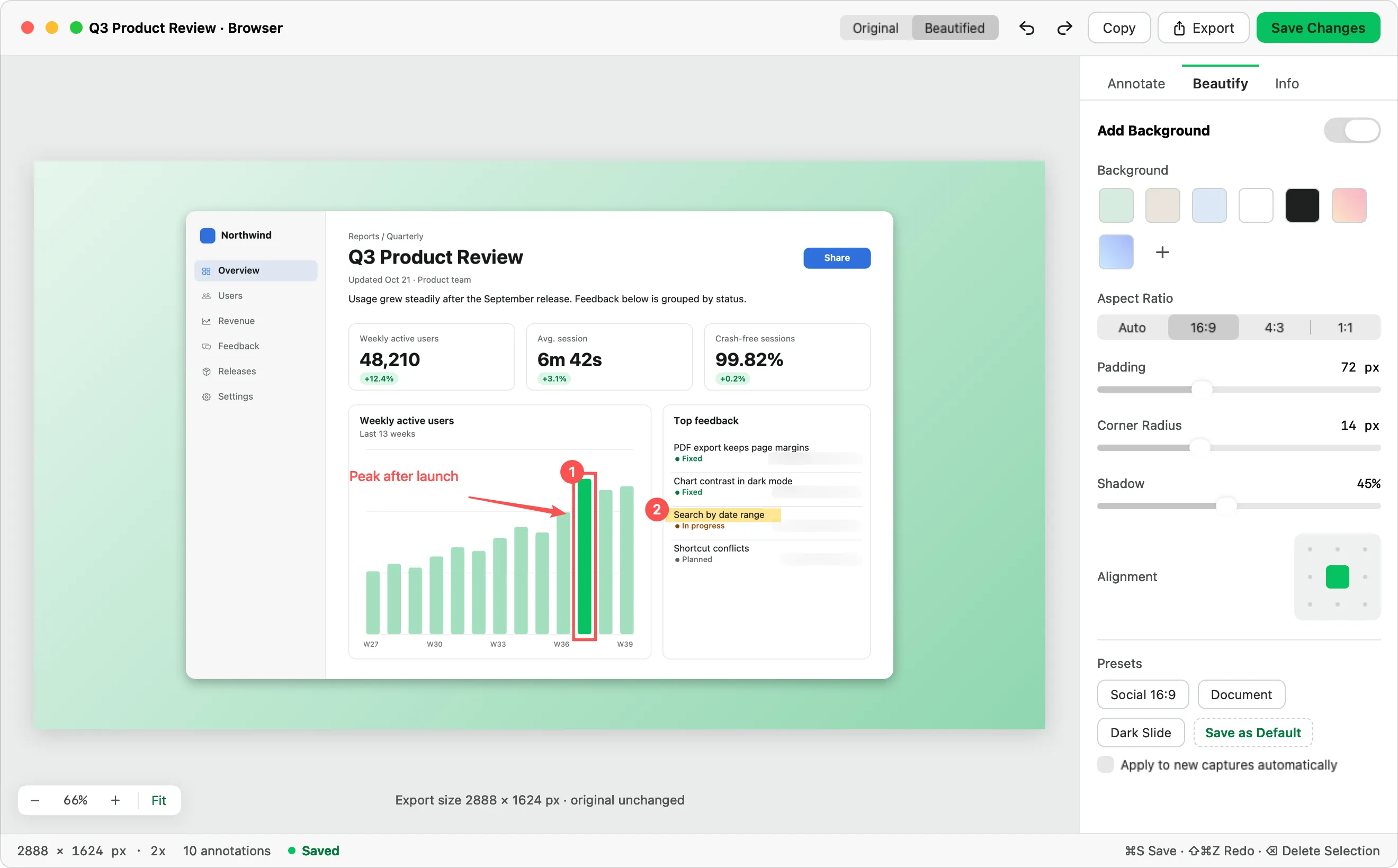
Add a solid or gradient background, padding, corner radius and shadow at 16:9, 4:3 or 1:1 — without touching the original pixels.
Capture and annotate in one motion
- Press ⌥Z (or click the menu-bar icon).
- Drag over the area, or click a window.
- Pick a tool with its letter key and annotate.
- Press Return to copy, ⌘S to save, or drag the card from the quick overlay.
Frequently asked questions
How do I take a screenshot of one window on a Mac?
Press ⌥⇧Z, or press ⌥Z and click the window. NeatShot keeps the window's rounded corners and shadow.
Can I blur sensitive information?
Yes. Use blur (B) or mosaic (M) on any part of the capture. Both are burned into the exported image.
Can I edit a screenshot later?
Yes. Captures open as editable .enshot projects, so annotations stay movable until you export.
More features
Scrolling capture
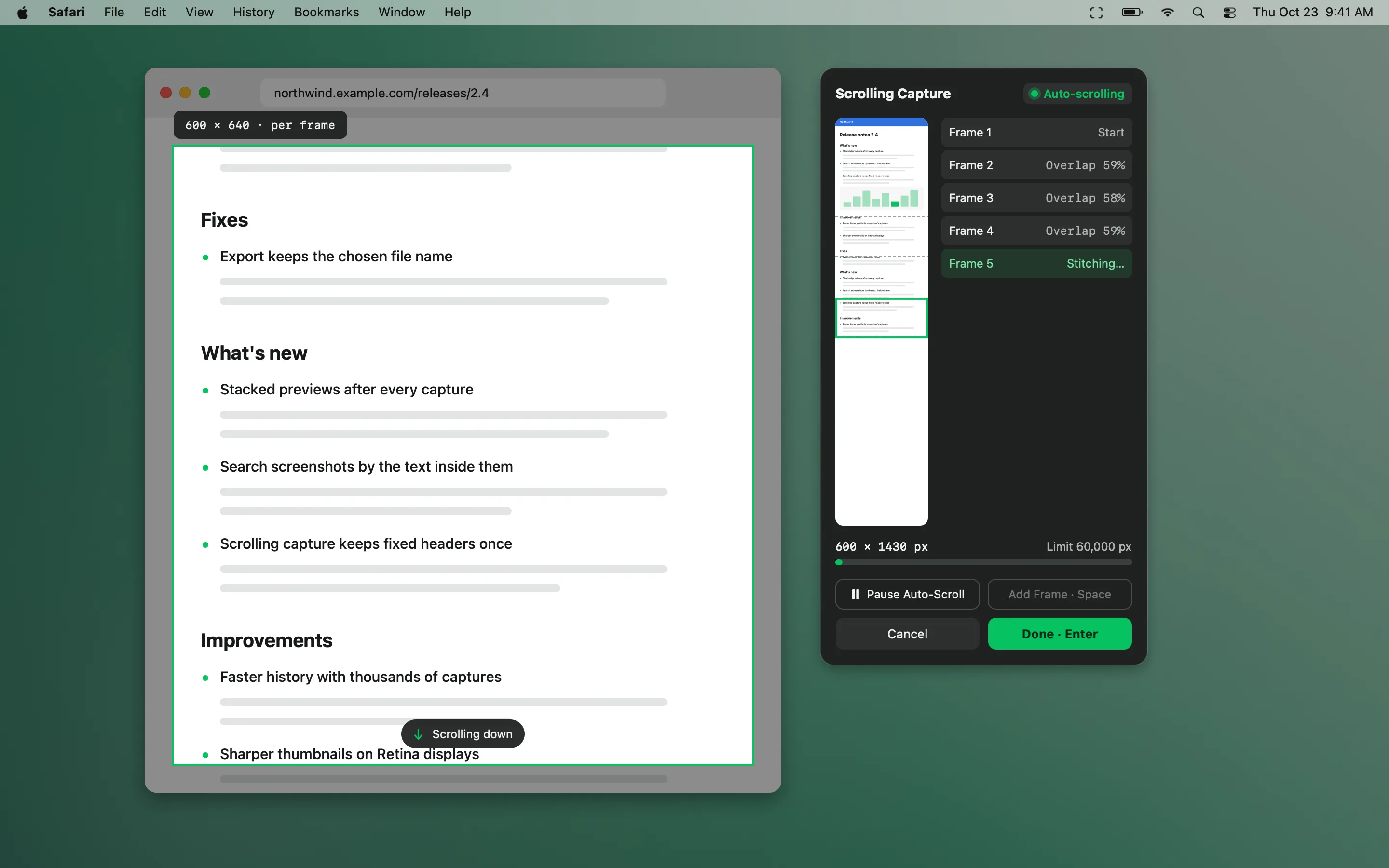
Stitch long pages, chats and documents into one tall image — scroll yourself or let NeatShot scroll.
OCR & QR codes
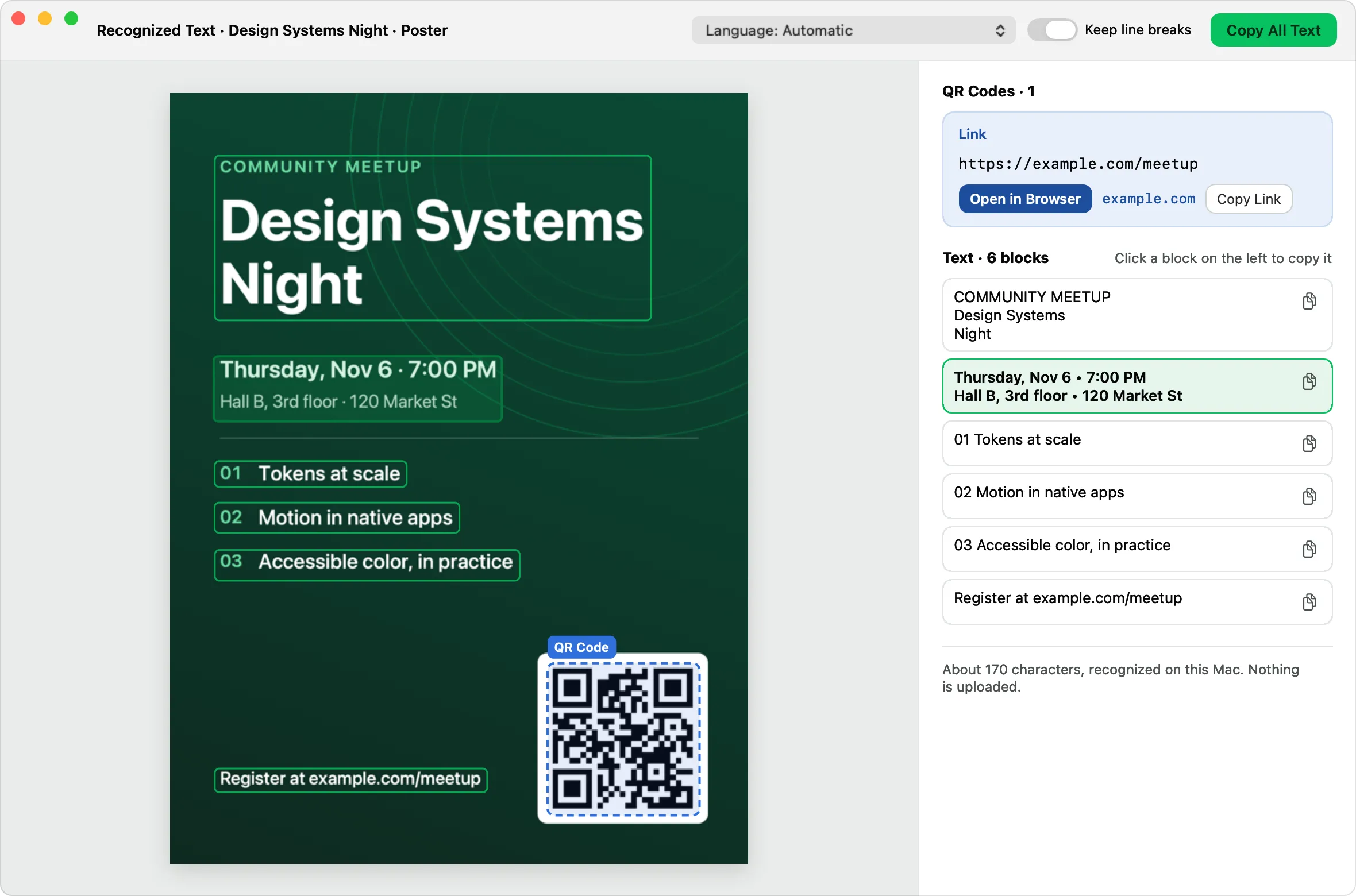
Recognize text and QR codes on-device, copy any block, and search history by the words inside images.
Screen recording & GIF
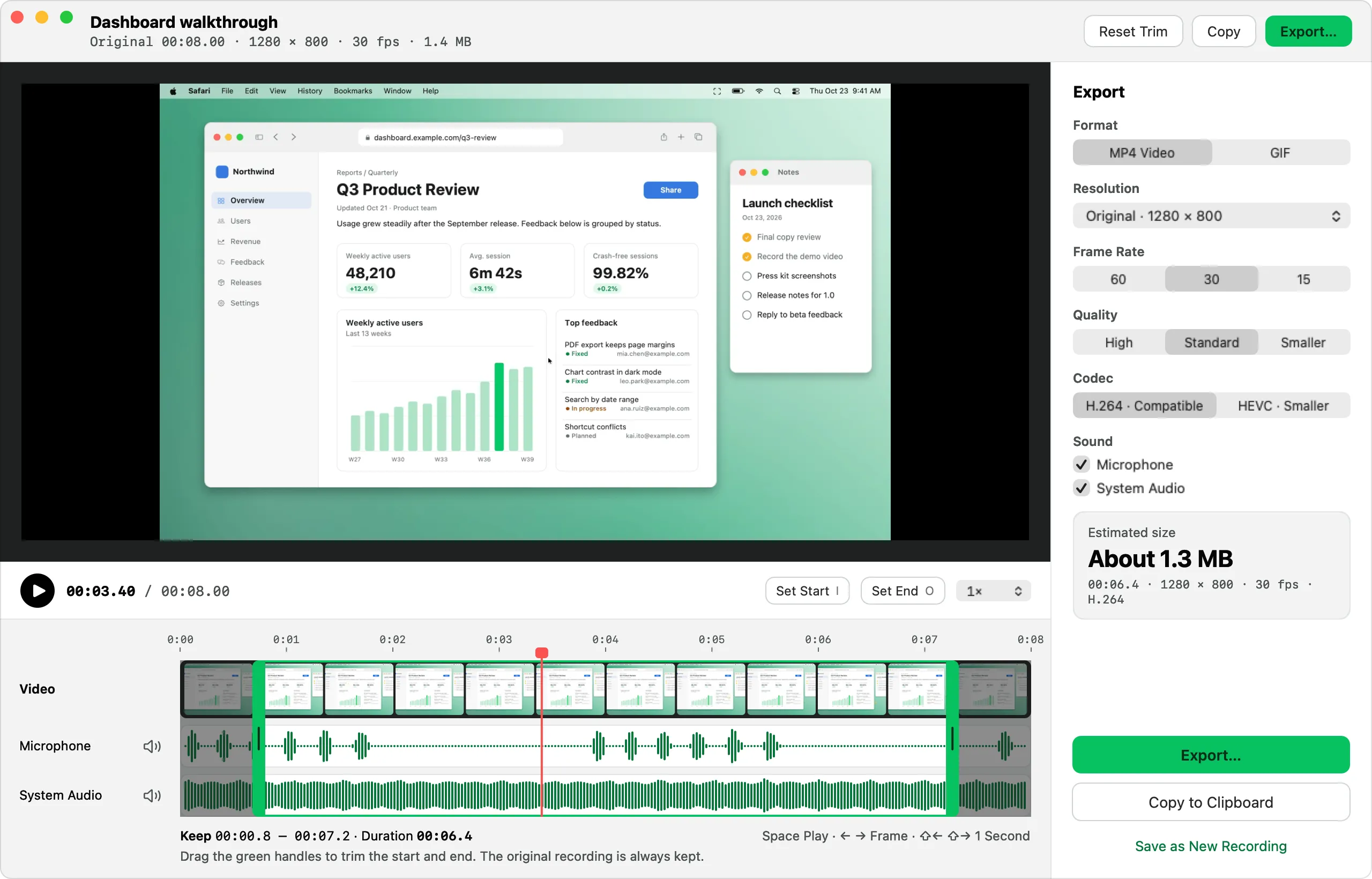
Record MP4 or GIF with microphone, system audio, camera, clicks and keystrokes, then trim and export.